Command Prompt Here
Have you ever wanted to open a Command Prompt in the folder you’re browsing in Windows Explorer? On Windows XP, you can add a Command Prompt entry to the folder context menu without installing extra software, such as Microsoft’s “Open Command Window Here” PowerToy.
Here’s how:
-
Open Folder Options in Control Panel. Alternatively, in Windows Explorer, select Tools → Folder Options.
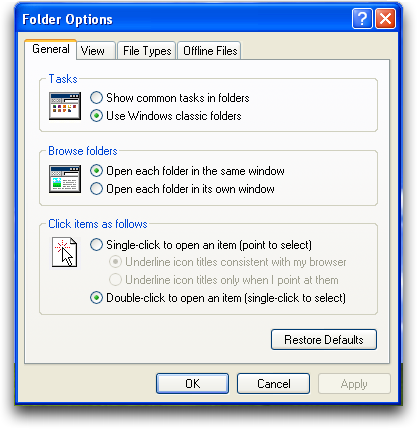
-
Select the File Types tab. In the Registered file types list, select Folder, whose extension is shown as (NONE).
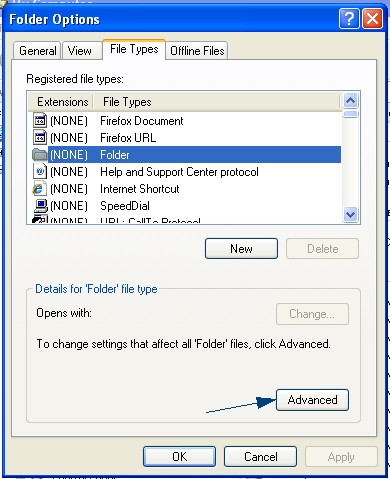
-
Click Advanced to open the Edit File Type dialog.
-
Click New to open the New Action dialog.
-
In the Action field, enter
Command Promptor another name of your choice. In Application used to perform action, enter:cmd.exe /k cd /d "%1"Here,
%1represents the selected folder. The command changes to that folder, including its drive, and leaves the Command Prompt open.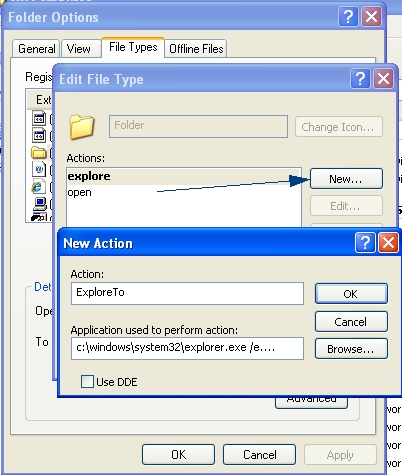
The screenshot shows a different example action. Use the name and command shown above for Command Prompt.
-
Click OK to close New Action, then click OK in Edit File Type and Folder Options.
Now, when you right-click a folder in Windows Explorer, you should see a Command Prompt entry. Select it to open a Command Prompt in that folder.
Replacement screenshots by Debra, from “Have Windows XP Explore option default Windows Explorer path”, licensed under CC BY-SA 3.0.